Minimal Nextcloud 23 with NGINX and SQLite on Ubuntu 22.04
- Introduction
- Problem statement
- Solution
- What you need
- Storage for Nextcloud binaries and data
- NGINX
- FPM
- Give it a try
- End
- References
Introduction
In 2021 I've been using Docker and Kubernetes more than before, but at the same time I've been paying more attention to the discussions about monoliths vs microservices, and complexities involving the latter.
Like many other IT people I've been getting fed up with the overheads - not just computing, but also management - of containers and have made the following improvements in my lab environment:
- Moved one service from Docker to physical
- Deployed several new services without containers, abandoning "containerized by default"
- Purged Docker from some systems where I could switch to a non-containerized version
One of those systems used to run a fancy Nextcloud setup (Docker, PostgreSQL, Certbot) and I just hated dealing with it. It worked fine but I'd also had two failed upgrades and every time I'd have to read the manual, check various requirements, visit the forums to see if there are any frequently seen issues, etc. That was another candidate for microservices-to-monolith simplification and this post is about that.
Problem statement
- You want a minimal Nextcloud for home use
- You don't want to deal with containers
- You prefer NGINX over Apache
- You're on Ubuntu 20.04 or 22.04 (or something in between)
- You access Nextcloud locally or use VPN and have no need for extra security (or for whatever reason simply don't give a damn)
Solution
This is just a solution, not the solution. YMMV.
- SQLite DB instead of MySQL, MariaDB or PostgreSQL
- Community-supported NGINX
- Screw the containers, Certbots and the rest
Once you have this in place, you can backup your Nextcloud data easily and don't have to deal with all the overheads and complications of Docker and a full-blown RDBMS.
What you need
- PHP (on Ubuntu 22.04 current version is 8.1, so check the warning below)
- SQLite
- NGINX
Warning for PHP 8.1 users
Here's what you get with Nextcloud 23.0.0 if you upgrade PHP to 8.1:
This version of Nextcloud is not compatible with > PHP 8.0.
You are currently running 8.1.0.
Follow Nextcloud issue #27 and the issue linked from it if you need a Nextcloud version that supports PHP 8.1. We'll continue assuming you have PHP 8.0 or earlier or that you don't care that PHP 8.1 isn't officially supported.
After I updated packages on Ubuntu 22.04 PHP got upgraded to 8.1 which broke my Nextcloud 23.0.0 because this version of Nextcloud doesn't support PHP 8.1. If your version of Nextcloud supports latest PHP you can get, feel free to change 8.0 to 8.1 or whatever version you will use.
My Ubuntu 22.04 Development Branch had PHP 8.0 that was a leftover from 20.04, but an upgrade wiped it and I wasn't able to get PHP 8.0 back. That Ondrey guy hasn't started supporting Ubuntu 22.04 yet, and other choices didn't seem attractive (as far as I am concerned).
So I went to Nextcloud 23.0.0 source code and at the bottom of lib/versioncheck.php changed the code to say "don't bother with anything older than PHP 8.1.0". Then I was able to use PHP 8.1 and now I'm good for minor patch updates of PHP, too. I'm not going to touch Nextcloud until it supports PHP 8.1.
if (PHP_VERSION_ID < 80100) {
	http_response_code(500);
	echo 'This version of Nextcloud is not compatible with > PHP 8.0.<br/>';
	echo 'You are currently running ' . PHP_VERSION . '.';
	exit(1);
}
Of course, that's not supported and breaks some minor features (see those Nextcloud issues on Github), but I don't need/use them so this is a perfect solution for me.
Install PHP 8.0
Here's a list of packages I have on Ubuntu 22.04 (some may be unnecessary, but this is what I have - I haven't need to remove 10-20 MB of packages so I didn't investigate which may be unnecessary (libnginx-mod-http-geoip2 and libnginx-mod-mail, for example)). Use 8.1 if that's what you have.
Ubuntu 20.04 users should replace "8.0" with "7.4" and remember to do it later (in PHP FPM and NGINX config files) as well.
sudo apt-get install -y \
  php-common php-curl php-gd php-mbstring php-sqlite3 php-xml php-zip \
  php8.0-cli php8.0-common php8.0-curl php8.0-fpm php8.0-gd php8.0-mbstring \
  php8.0-opcache php8.0-readline php8.0-sqlite3 php8.0-xml php8.0-zip \
  libnginx-mod-http-geoip2 libnginx-mod-http-image-filter \
  libnginx-mod-http-xslt-filter libnginx-mod-mail libnginx-mod-stream libnginx-mod-stream-geoip2 \
  nginx nginx-common nginx-core \
  sqlite3
As noted earlier, when I upgraded to Ubuntu 22.04 PHP was v8.0 and and a minor version upgrade (to 8.1) broke my Nextcloud.
If you have PHP 8.0 and consider using apt-mark hold until you decide to upgrade Nextcloud and PHP - just remember to also refresh Nextcloud and PHP config files. Or hack that PHP file like I did and try Nextcloud 23 with PHP 8.1.
Storage for Nextcloud binaries and data
I plan to run Nextcloud out of /data/nextcloud, and keep my data in /data/nextcloud/data.
sudo mkdir -p /data/nextcloud/data
Download Nextcloud 23 to /tmp or directly to data directory above, decompress and move Nextcloud code to /data/nextcloud (or other directory of your choosing).
Chown these files to be owned by www-data (which is your NGINX user):
sudo chown -R www-data:www-data /data/nextcloud
If you use a different directory, remember to change it in nextcloud.conf below.
My SQLite data will be in /data/nextcloud/data/.
NGINX
The current Nextcloud documentation has some old NGINX config sample, probably for CentOS or something. Since NGINX is only community-supported, I'll just put my example here and rely on search engines to help Ubuntu / NGINX users find this.
Okay, let's see my NGINX configuration:
- Main config file that has almost nothing in it, but loads nextcloud.conf
- nextcloud.conf in sites-available, symlinked to sites-enabled to be actually enabled
- It uses the right link to PHP FPM service socket
As mentioned above, remember to use PHP version 7.4 if on Ubuntu 20.04 or other PHP version that you may have.
- /etc/nginx/nginx.conf:
user www-data;
worker_processes auto;
pid /run/nginx.pid;
include /etc/nginx/modules-enabled/*.conf;

events {
    # I don't want more than 64 worker connections (this is quite low, but enough for me)
    worker_connections 64;
}

http {
    include       mime.types;
    default_type  application/octet-stream;
    # to read nextcloud.conf
    include "/etc/nginx/sites-enabled/*.conf";
}
- /etc/nginx/sites-available/nextcloud.conf (taken from here and minimally modified)
upstream php-handler {
    # notice 8.0 in the socket link below - change to 7.4 or 8.1 or
    #   whatever PHP version you're using
    #   or even use IP:port (same IP:port must be configured in PHP FPM)
    # server unix:/run/php-fpm/www.sock;
    server unix:/run/php/php8.0-fpm.sock;
}

server {
    # I disable HTTPS - don't need it
    # listen 443 ssl;
    # my Nextcloud IPv4:port; IPv6 is also disabled
    listen 8080;
    server_name 192.168.1.200;
    # No HTTPS - no TLS certs, less work to dos
    #ssl_certificate /etc/ssl/nginx/cloud.example.com.crt;
    #ssl_certificate_key /etc/ssl/nginx/cloud.example.com.key;
    # Add headers to serve security related headers
    # Before enabling Strict-Transport-Security headers please read into this
    # topic first.
    # add_header Strict-Transport-Security "max-age=15768000;
    # includeSubDomains; preload;";
    add_header X-Content-Type-Options nosniff;
    add_header X-Frame-Options "SAMEORIGIN";
    add_header X-XSS-Protection "1; mode=block";
    add_header X-Robots-Tag none;
    add_header X-Download-Options noopen;
    add_header X-Permitted-Cross-Domain-Policies none;

    # Path to the root of your installation
    # root /var/www/nextcloud/;
    root /data/nextcloud/;
    # This below is unnecessary for private sites, can be removed but whatever
    location = /robots.txt {
        allow all;
        log_not_found off;
        access_log off;
    }

    # The following 2 rules are only needed for the user_webfinger app.
    # Uncomment it if you're planning to use this app.
    #rewrite ^/.well-known/host-meta /public.php?service=host-meta last;
    #rewrite ^/.well-known/host-meta.json /public.php?service=host-meta-json
    # last;

    location = /.well-known/carddav {
      return 301 $scheme://$host/remote.php/dav;
    }
    location = /.well-known/caldav {
      return 301 $scheme://$host/remote.php/dav;
    }

    # set max upload size
    client_max_body_size 512M;
    fastcgi_buffers 64 4K;

    # Disable gzip to avoid the removal of the ETag header
    gzip off;

    # Uncomment if your server is build with the ngx_pagespeed module
    # This module is currently not supported.
    #pagespeed off;

    error_page 403 /core/templates/403.php;
    error_page 404 /core/templates/404.php;

    location / {
        rewrite ^ /index.php$uri;
    }

    location ~ ^/(?:build|tests|config|lib|3rdparty|templates|data)/ {
        deny all;
    }
    location ~ ^/(?:\.|autotest|occ|issue|indie|db_|console) {
        deny all;
    }

    location ~ ^/(?:index|remote|public|cron|core/ajax/update|status|ocs/v[12]|updater/.+|ocs-provider/.+|core/templates/40[34])\.php(?:$|/) {
        include fastcgi_params;
        fastcgi_split_path_info ^(.+\.php)(/.*)$;
        fastcgi_param SCRIPT_FILENAME $document_root$fastcgi_script_name;
        fastcgi_param PATH_INFO $fastcgi_path_info;
        #fastcgi_param HTTPS on;
        #Avoid sending the security headers twice
        fastcgi_param modHeadersAvailable true;
        fastcgi_param front_controller_active true;
        fastcgi_pass php-handler;
        fastcgi_intercept_errors on;
        fastcgi_request_buffering off;
    }

    location ~ ^/(?:updater|ocs-provider)(?:$|/) {
        try_files $uri/ =404;
        index index.php;
    }

    # Adding the cache control header for js and css files
    # Make sure it is BELOW the PHP block
    location ~* \.(?:css|js)$ {
        try_files $uri /index.php$uri$is_args$args;
        add_header Cache-Control "public, max-age=7200";
        # Add headers to serve security related headers (It is intended to
        # have those duplicated to the ones above)
        # Before enabling Strict-Transport-Security headers please read into
        # this topic first.
        # add_header Strict-Transport-Security "max-age=15768000;
        #  includeSubDomains; preload;";
        add_header X-Content-Type-Options nosniff;
        add_header X-Frame-Options "SAMEORIGIN";
        add_header X-XSS-Protection "1; mode=block";
        add_header X-Robots-Tag none;
        add_header X-Download-Options noopen;
        add_header X-Permitted-Cross-Domain-Policies none;
        # Optional: Don't log access to assets
        access_log off;
    }

    location ~* \.(?:svg|gif|png|html|ttf|woff|ico|jpg|jpeg)$ {
        try_files $uri /index.php$uri$is_args$args;
        # Optional: Don't log access to other assets
        access_log off;
    }
}
Now my NGINX configuration is configured to run the Nextcloud app from /data/nextcloud.
Enable the sucker:
sudo ln -s /etc/nginx/sites-available/nextcloud.conf /etc/nginx/sites-enabled/nextcloud.conf
FPM
Mind the PHP version! If it's 8.1, do this in /etc/php/8.1 and so on.
- /etc/php/8.0/fpm/php-fpm.conf:
- PHP 8.1: /etc/php/8.1/fpm/php-fpm.conf
[global]
# change 8.0 to 8.1 for PHP 8.1
pid = /run/php/php8.0-fpm.pid
error_log = /var/log/php8.0-fpm.log
include=/etc/php/8.0/fpm/pool.d/*.conf
- /etc/php/8.0/fpm/pool.d/www.conf (key details: user, group, listen*):
- PHP 8.1: /etc/php/8.1/fpm/pool.d/www.conf
[www]
user = www-data
group = www-data
# change 8.0 to 8.1 for PHP 8.1
listen = /run/php/php8.0-fpm.sock
listen.owner = www-data
listen.group = www-data
listen.allowed_clients = 127.0.0.1
pm = dynamic
pm.max_children = 5
pm.start_servers = 2
pm.min_spare_servers = 1
pm.max_spare_servers = 3
pm.status_listen = 127.0.0.1:19001
Restart or reload PHP-FPM:
# use 8.1 if that's the version you have
# sudo systemctl reload php8.1-fpm.service
sudo systemctl reload php8.0-fpm.service
# sudo systemctl reload php7.4-fpm.service # Ubuntu 20.04
You can tail the FPM logs and check socket/port to make sure the service is running as expected.
However you configure your PHP-FPM, NGINX must be able to connect to it.
In nextcloud.conf above I connect to listen = /run/php/php8.0-fpm.sock (php8.1-fpm.sock for PHP 8.1) which I have in my FPM config. Also, www-data is the same user and group that NGINX uses (and who owns the Nextcloud directory tree).
$ ll /run/php/php8.0-fpm.sock
srw-rw---- 1 www-data www-data 0 Dec 29 05:56 /run/php/php8.0-fpm.sock=
Give it a try
If FPM is working fine, you only need to start, or restart or reload (if already running) NGINX:
# sudo systemctl restart php8.0-fpm.service
# sudo systemctl restart php8.1-fpm.service  # Ubuntu 22.04 + PHP 8.1
# sudo systemctl restart php7.4-fpm.service  # Ubuntu 20.04
sudo systemctl restart nginx.service
If you get an upstream error, that's your FPM. Make sure the socket path (or 127.0.0.1:port, if you don't use socket) and user match NGINX Nextcloud site settings, or otherwise fix it and retry.
End
Visit your Nextcloud home page. In my case that's http://192.168.1.200:8080.
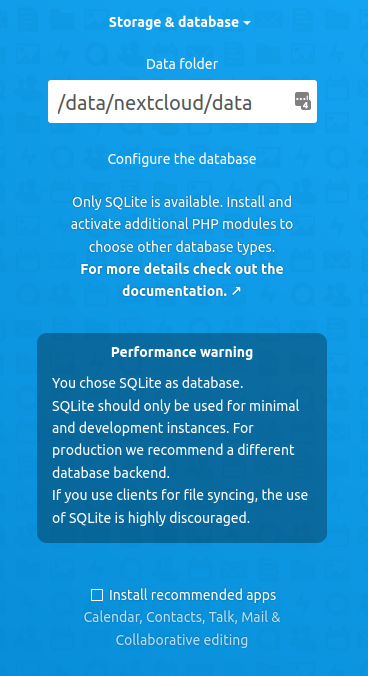
If you've made this this far, you're probably done.
When I continued and configured Nextcloud, NGINX timed out. I didn't do anything (refresh, retry, etc.) at that point - I just waited 15 seconds until it self-refreshed (everything worked out) and showed the familiar login screen. That was the only time I saw any performance-related issues with my lightweight use.
Notice that SQLite data will be in /data/nextcloud/data (./data/ subdirectory of where Nextcloud is running), which makes the whole thing very easy to backup and restore, and that I unchecked to install all the nice Nextcloud apps I don't need (and I don't want SQLite to struggle with that unnecessary workload either).
I can backup /data/nextcloud by simply copying or uploading it where I want and when I decide to update I should be able to simply backup /data/nextcloud and unzip new Nextcloud version to /data/nextcloud (without overwriting /data/nextcloud/data).
Now Nextcloud is not as fast as it was with a PostgreSQL backend on the same system. And if I install a crapload of Nextcloud apps I'd probably have frequent timeouts so I will stay clear of that.
This entire setup uses only around 110 MB of RAM (most of that is these three FPM processes) and the few Nextcloud apps I do need all work without issues, which is exactly what I wanted. With some changes in PHP FPM settings this could be reduced to less than 100 MB, but 110 MB is good enough.
    PID USER      PR  NI    VIRT    RES    SHR S  %CPU  %MEM     TIME+ COMMAND
  47050 www-data  20   0  230932  50676  39360 S   0.0   2.9   0:02.00 php-fpm8.0
  45329 www-data  20   0  230756  44552  33588 S   0.0   2.5   0:02.15 php-fpm8.0
  47051 www-data  20   0  228328  44480  35180 S   0.0   2.5   0:00.26 php-fpm8.0
As you've noticed, I don't use HTTPS and Certbot. It's trivial to add self-generated TLS certificates and you can add it on your own, but for Certbot you need to open firewall (more complications) and pay attention to more details.
I don't need HTTPS and Certbot for many reasons: I'm the only user, don't plan to connect from public IPs, don't have anything confidential that I keep on this Nextcloud instance, don't want to spend CPU resources on HTTPS encryption, etc. I used to have Certbot with Nextcloud (and Docker, and various other fancy add-ons) before, but I never connected from the outside and still had to monitor and maintain firewall and Certbot from time to time. So screw that.
If you want TLS at a later time you can always change NGINX configuration to TLS, or add an HTTPS reverse proxy (maybe a stand-alone NGINX container that reverse-proxies NGINX with Nextcloud) for public (Internet) access and still use HTTP internally.
References
Aside from the official documentation, here are some useful pages and one unrelated video:
- Nextcloud with SQLite and Apache2 in Docker
- Nextcloud with NGINX, MySQL and Certbot
- Nextcloud with snapd on Ubuntu - if you prefer less flexibility but more simplicity
- NetApp StorageGRID as External S3 Tier for Nextcloud - I recorded this some time ago and wouldn't recommend it for a SQLite-backed Nextcloud