SolidFire Maintenance Mode
Maintenance Mode is a relatively new SolidFire feature that takes a node in and out of the neutral. In other words, it nicely moves a node's services to remaining cluster nodes, making servicing less disruptive to iSCSI clients, and makes it eligible for service scheduling when node leaves Maintenance Mode (i.e. returns to full service).
The SolidFire documentation (link above) currently doesn't tell you how to check Maintenance Mode status of a node. I opened a documentation bug for that so that will soon be improved, but in any case it's good to have this described in more detail. One of the several reasons for this is you can't try this on SolidFire Demo Node (which has only one node to begin with).
Maintenance Mode doesn't automagically protect cluster from data loss in the case of a node or disk failure while a node is offline. It still (temporarily) makes it run with (1-(n-1)/n) of data without recreating the second copy of the blocks on the node that's in mainenance mode. Its purpose is simply to make node or cluster maintenance during busy hours less disruptive to existing clients.
You're not supposed to put an unstable node in maintenance mode while Support is trying to figure it out. If a node is that unstable, you will probably want to remove it from the cluster (that way cluster will reprotect all data with Helix/RF2, assuming you have sufficient capacity left).
On SolidFire 12.2 or 12.3 we can find the current maintenance status by listing all nodes (ListAllNodes) and looking at maintenanceMode of each. ListActiveNodes also responds with this information.
Example:
Name                           Value
----                           -----
fibreChannelTargetPortGroup
cip                            10.12.5.51
sipi                           Bond10G
mipi                           Bond1G
nodeSlot                       D
platformInfo                   {chassisType, platformConfigVersion, containerized, nodeType...}
role                           Storage
virtualNetworks                {System.Collections.Hashtable}
customProtectionDomainName     __default__
chassisName                    002170800051
cipi                           Bond10G
nodeID                         1
sip                            10.12.5.51
softwareVersion                12.3.0.958
mip                            10.12.5.54
associatedMasterServiceID      1
uuid                           00000000-0000-0000-0000-0CC47AF2DC12
associatedFServiceID           0
attributes                     {}
name                           hci-s1
maintenanceMode                Disabled
To put node ID 4 (ID obtained from Cluster > Nodes > Active > Node ID) into Maintenance Mode, we use EnableMaintenanceMode and pass it the node ID like this {"nodes" = [4]}.
We can't provide more than one node ID in method params or run the command twice for different nodes (it won't work the second time if it's worked the first time) because RF2 can tolerate only one node being offline at a time (well, we could put more than one node from a Protection Domain in MaintenanceMode if the method understood Protection Domains, but currently (version 12.3) it's not there yet).
This returns an asyncHandle ID (e.g. 492) which we can use to watch its progress:
Name                           Value
----                           -----
asyncHandle                    492
requestedMode                  ReadyForMaintenance
currentMode                    PreparingForMaintenance
We can use that handle to watch the progress:
Name                           Value
----                           -----
createTime                     5/6/2021 6:59:02 AM
status                         running
details                        {message, action, nodes}
resultType                     MaintenanceMode
lastUpdateTime                 5/6/2021 6:59:07 AM
Once done, it will look similar to this (before it disappears):
Name                           Value
----                           -----
createTime                     5/6/2021 6:59:02 AM
status                         complete
result                         {message, action, nodes}
lastUpdateTime                 5/6/2021 7:00:07 AM
resultType                     MaintenanceMode
It can take a few minutes for SolidFire Web UI to start indicating that a node is under maintenance.
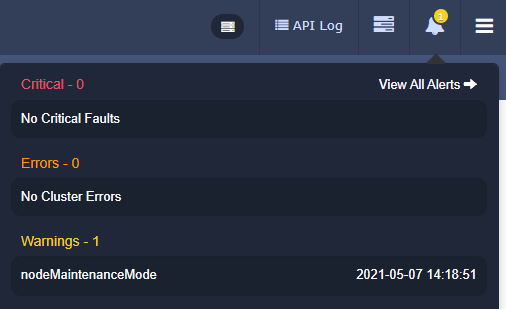
Now ListActiveNodes or ListAllNodes would show one of the nodes as ReadyForMaintenance. Notice that this is not node ID 3.
$r.nodes[3].maintenanceMode
ReadyForMaintenance
$r.nodes[3].nodeID
4
To go back and enable the node (or, disable Maintenance Mode), use the DisableMaintenanceMode method with params for the node ID ({"nodes" = [4]}).
Name                           Value
----                           -----
createTime                     5/6/2021 7:03:50 AM
status                         running
details                        {nodes, action}
resultType                     MaintenanceMode
lastUpdateTime                 5/6/2021 7:03:50 AM
During that time the node leaving Maintenance Mode resyncs its Metadata with the Primary copy to catch up with the changes that happened while Maintenance Mode was enabled. Transient errors and warnings may appear but shouldn't persist.
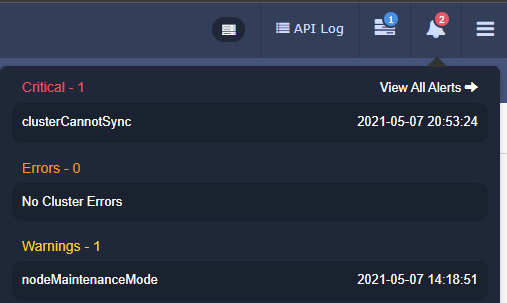
A node is considered to be in Maintenance Mode until it completes leaving it.
Eventually the async job status would indicate job completion:
Name                           Value
----                           -----
createTime                     5/6/2021 7:03:50 AM
status                         complete
result                         {message, action, nodes}
lastUpdateTime                 5/6/2021 7:06:07 AM
resultType                     MaintenanceMode
You could also find this information in SolidFire events or SNMP logs if you forward those to external destination. Or use ListAllNodes and confirm that no node has maintenanceMode Enabled.
Note (see the documentation link at the top) that the maintenance mode methods return currentMode and requestedMode, but because the nodes parameter is mandatory I don't like the idea of using these methods to check node status (I'd rather List(All)Nodes as shown above).
Secondly, possible values aren't just Enabled and Disabled - there's FailedToRecover, PreparingForMaintenance, and more. See the documentation link for the details!