Forward E-Series SANtricity logs to remote syslog server
Configure SANtricity to send array events to a remote syslog server
Configure your syslog server to be able to receive syslog events on a UDP port.
Example with an rsyslog server listening at 10514/UDP and accepting logs from two arrays; each has two controllers so we use a compare filter to store each array's log to a separate file.
$ModLoad imudp
$UDPServerRun 10514
# E-Series 1: 1.2.3.41 and 1.2.3.42
if $fromhost-ip startswith '1.2.3' then /var/log/eseries1.log
&stop
# E-Series 2: 5.6.7.81 and 5.6.7.82
if $fromhost-ip startswith '5.6.7' then /var/log/eseries2.log
&stop
Restart syslog server, make sure it's running and reachable at its external SANtricity-facing IP.
Login to SANtricity and in Alerts add your syslog destination. SANtricity syslog comes from one of the addresses you see in Web UI. Click

Use "Test All Syslog Servers" button in SANtricity Web UI (see screenshot above).
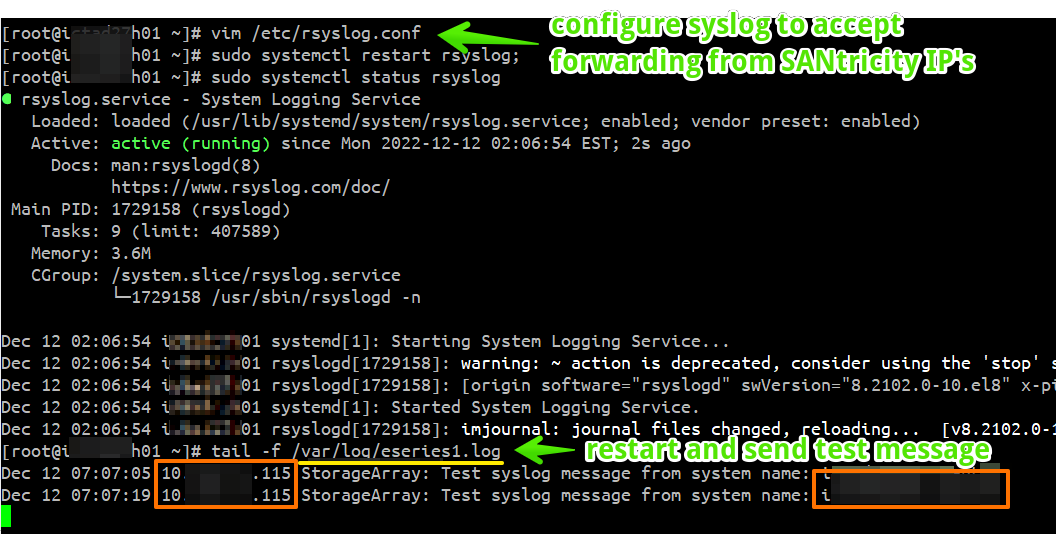
Two test messages have been sent and received. Array name (System Name, set in SANtricity's settings) is at the end of the message.
It is recommended to set the controllers to sync with external NTP servers, so that their system clocks don't differ by more than several seconds.
The official documentation for SANtricity 11.7 can be found here.
Syslog forwarding to Elasticsearch or other destination
Once syslog server starts receiving SANtricity logs, they may be forwarded to another destination such as Elasticsearch.
Input: configure something like Filebeat or other, and tell it to fetch syslog-formatted files such as /var/log/eseries*.log from above.
Output: in Filebeat that would usually be your Elasticsearch server (or servers) and make sure the correct protocol (HTTPS or HTTP) is specified. A log collector account and password or an API key are required to authenticate against Elasticsearch or Logstash, if you're sending data to it.