Increase size of SolidFire volumes paired for replication
- Introduction
- Situation
- Procedure
- Kubernetes
- Conclusion
- Appendix A - upsize remote and resize in Longhorny
Introduction
You've paired two volumes at the source and the destination cluster, and now you need to grow their size.
This post reviews how to do that correctly on SolidFire.
Situation
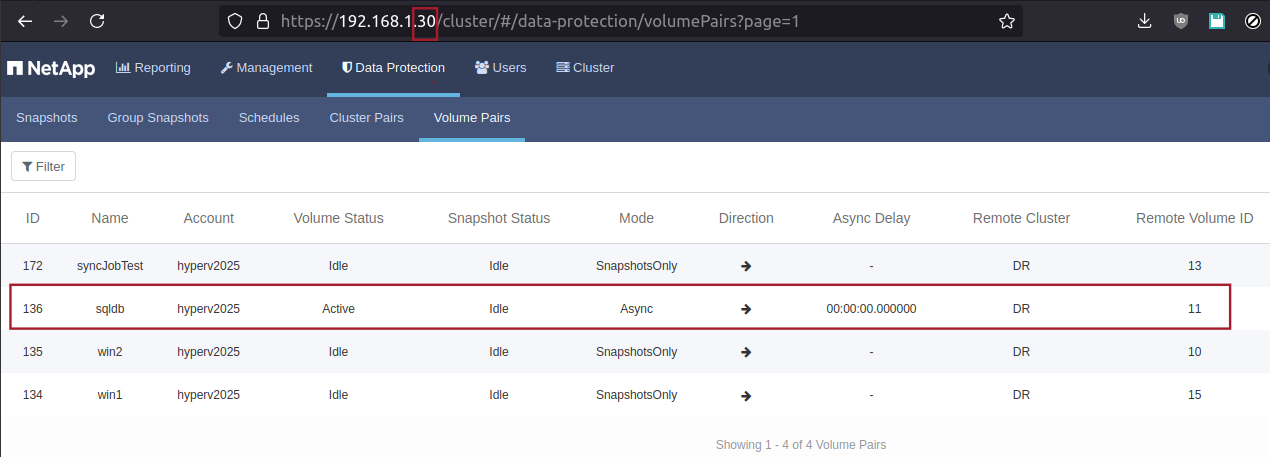
Source: volume ID 136 (5GB) is asynchronously replicated to the same-sized "target" volume at Destination.
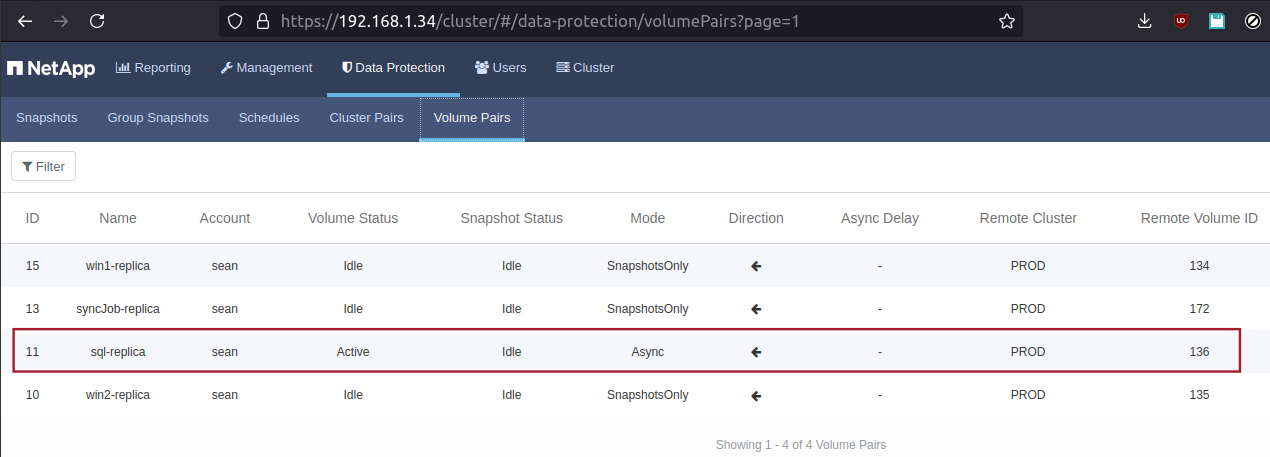
Destination: incoming Async replication from the source.
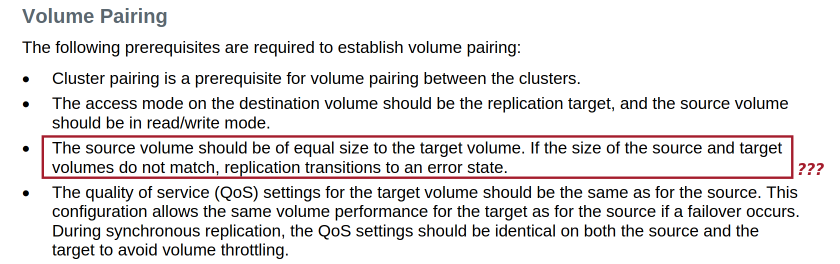
The NetApp TR (TR-4741) contains this gem to help you out:
The source volume should be of equal size to the target volume. If the size of the source and target volumes do not match, replication transitions to an error state.
Uh, okay… Good to know, Pete. But 95% of the readers must be wondering how to avoid this problem when they need to grow a replicated volume.
Clearly that's too much to ask for: it's an exercise for the reader, as they say.
Procedure
We'll try the following:
- Suspend replication at source
- Grow target volume size
- Grow source volume size
- (Optional) use filesystem tools to grow filesystem to new volume size
- Resume replication at source
Because the volumes are already paired, we only need to use "ModifyVolumePair" which RTFM says needs only be executed at the source.
View volume pairing by looking it up by volume ID (136) at the source. Status is "active" which tells us the pairing relationship is fine, so I won't check from the other side.
PS /home/sean> Get-SFVolumePair -SourceVolumeID 136

VolumeID                    : 136
Name                        : sqldb
AccountID                   : 13
CreateTime                  : 2024-03-30T15:48:37Z
VolumeConsistencyGroupUUID  : 037c2c49-d6cc-4a0b-9b82-4cb287634c33
VolumeUUID                  : 52707066-3f85-44a6-a2a2-ebb8e7bc0ba0
EnableSnapMirrorReplication : False
Status                      : active
Access                      : readWrite
Enable512e                  : True
Iqn                         : iqn.2010-01.com.solidfire:wcwb.sqldb.136
ScsiEUIDeviceID             : 7763776200000088f47acc0100000000
ScsiNAADeviceID             : 6f47acc1000000007763776200000088
Qos                         : {"MinIOPS" = 100, "MaxIOPS" = 800, "BurstIOPS" = 1000, "BurstTime" = 60}
QosPolicyID                 : 1
VolumeAccessGroups          : {4}
VolumePairs                 : {sql-replica}
DeleteTime                  :
PurgeTime                   :
LastAccessTime              : 2024-06-16T16:07:04Z
LastAccessTimeIO            : 2024-06-16T16:07:04Z
SliceCount                  : 1
TotalSize                   : 5000658944
BlockSize                   : 4096
VirtualVolumeID             :
Attributes                  : {[SfQosId, 1]}
CurrentProtectionScheme     : singleHelix
PreviousProtectionScheme    :
FifoSize                    : 5
MinFifoSize                 : 0
Modify the relationship by manually pausing replication at the source.
Set-SFVolumePair -VolumeID 136 -PausedManual:$True
Now we can increase the size of both the source and target. Total size given above is 5000658944 bytes. Let's add 4,000 in 4096 byte blocks = 16384000 bytes. New size: 5000658944 + 16384000 = 5017042944 bytes.
Resizing the destination volume is the only operation that needs to be done at the destination.
PS /home/sean> Set-SFVolume -VolumeID 11 -TotalSize 5017042944

Confirm
Are you sure you want to perform this action?
Performing the operation "SetSFVolume" on target "192.168.1.34 {"VolumeID" = 11}".
[Y] Yes  [A] Yes to All  [N] No  [L] No to All  [S] Suspend  [?] Help (default is "Y"): y

VolumeID                    : 11
Name                        : sql-replica
AccountID                   : 1
CreateTime                  : 2024-06-14T16:21:26Z
VolumeConsistencyGroupUUID  : c413905b-54c5-48d1-80a2-e4fa563b59a8
VolumeUUID                  : c74bf578-c7d8-4959-9562-cce73a62a86d
EnableSnapMirrorReplication : False
Status                      : active
Access                      : replicationTarget
Enable512e                  : True
Iqn                         : iqn.2010-01.com.solidfire:xh67.sql-replica.11
ScsiEUIDeviceID             : 786836370000000bf47acc0100000000
ScsiNAADeviceID             : 6f47acc100000000786836370000000b
Qos                         : {"MinIOPS" = 50, "MaxIOPS" = 1500, "BurstIOPS" = 1500, "BurstTime" = 60}
QosPolicyID                 :
VolumeAccessGroups          : {}
VolumePairs                 : {sqldb}
DeleteTime                  :
PurgeTime                   :
LastAccessTime              :
LastAccessTimeIO            :
SliceCount                  : 1
TotalSize                   : 5017436160
Now repeat this on the source side for the pair, where the volume is readWrite.
PS /home/sean> Set-SFVolume -VolumeID 136 -TotalSize 5017042944

Confirm
Are you sure you want to perform this action?
Performing the operation "SetSFVolume" on target "192.168.1.30 {"VolumeID" = 136}".
[Y] Yes  [A] Yes to All  [N] No  [L] No to All  [S] Suspend  [?] Help (default is "Y"): Y

VolumeID                    : 136
Name                        : sqldb
AccountID                   : 13
CreateTime                  : 2024-03-30T15:48:37Z
VolumeConsistencyGroupUUID  : 037c2c49-d6cc-4a0b-9b82-4cb287634c33
VolumeUUID                  : 52707066-3f85-44a6-a2a2-ebb8e7bc0ba0
EnableSnapMirrorReplication : False
Status                      : active
Access                      : readWrite
Enable512e                  : True
Iqn                         : iqn.2010-01.com.solidfire:wcwb.sqldb.136
ScsiEUIDeviceID             : 7763776200000088f47acc0100000000
ScsiNAADeviceID             : 6f47acc1000000007763776200000088
Qos                         : {"MinIOPS" = 100, "MaxIOPS" = 800, "BurstIOPS" = 1000, "BurstTime" = 60}
QosPolicyID                 : 1
VolumeAccessGroups          : {4}
VolumePairs                 : {sql-replica}
DeleteTime                  :
PurgeTime                   :
LastAccessTime              : 2024-06-16T16:07:04Z
LastAccessTimeIO            : 2024-06-16T16:07:04Z
SliceCount                  : 1
TotalSize                   : 5017436160
Now each side in the pair has the identical and larger TotalSize property (5017436160 bytes).
We could immediately resume replication, but in most cases you will want to resize the filesystem first. I mean at the source, obviously, because the destination is a replica at there's no need to touch contents of the replica volume.
Technically you can resume replication now and resize the filesystem later, it's just that the added capacity won't be visible to filesystem until the filesystem has been resized.
PS /home/sean> Get-SFVolumePair -SourceVolumeID 136  | Select-Object -Property TotalSize

 TotalSize
 ---------
5017436160

PS /home/sean> Set-SFVolumePair -VolumeID 136 -PausedManual:$False
-PausedManual:$False is enough to unpause the state and minutes later replication should be back to normal.
Kubernetes
In a Kubernetes environment, if resizing is allowed in the StorageClass, editing the PVC claim is enough to resize the volume and filesystem at the source. But the remote volume would still remain undersized, so that the volume pair's replication would enter error state. To avoid that, you need to resize the destination volume as well.
Because in Trident CSI PVCs you probably use larger units like 20G or 20Gi rather than bytes (which is allowed, but not common), you can use the SoliFire UI to pick the same size at the destination, or maybe a CLI utility that changes the destination first and gives you the amount of bytes to use in PVC at the source side. That way you don't have to use the UI if you can accomplish everything from the CLI.
Conclusion
Whether it's Kubernetes or something else, it's best to first manually pause replication for the volume at the source, resize the volume at the destination, then at the source, and finally resume volume replication from the source.
You may also want to confirm each cluster has enough capacity to allow new storage growth, and take a snapshot with few hours of retention time before each step described above.
Appendix A - upsize remote and resize in Longhorny
Two actions have been added to Longhorny:
- resize
- upsize-remote
Resize adds the specified amount in bytes to both paired volumes. Longhorny can't resize the filesystem for the user, so that part has to be done manually (only at the source side, since the destination will receive updated volume data thanks to replication).
Upsize remote, as the name suggests, looks up the source volume size, grows the destination volume to the same size, and resumes replication. Its main use case is to make it easy to recover replication relationships broken by Trident CSI volume expand feature.